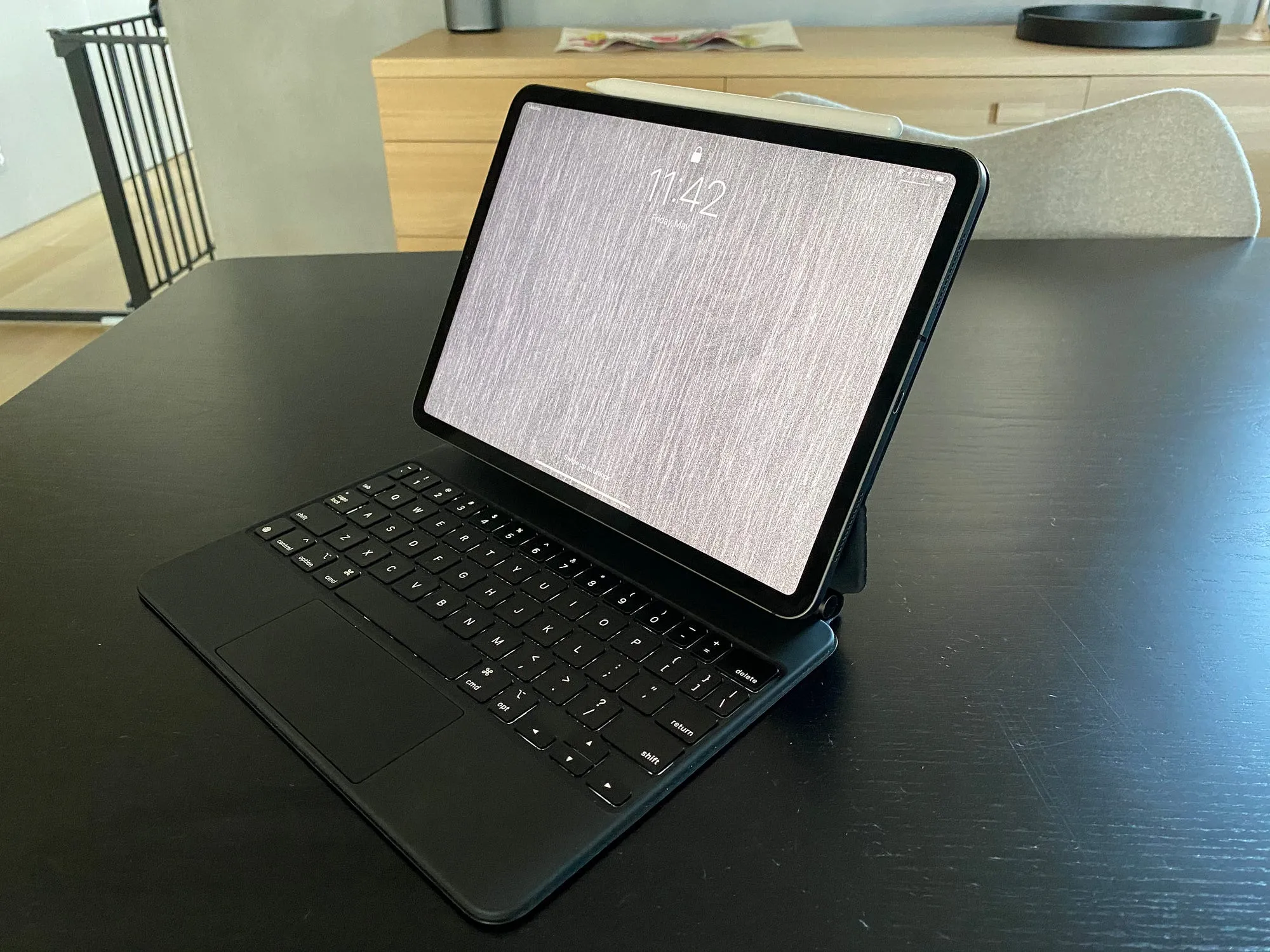
5 Powerful iPad Hacks for Productivity & Creativity in 2026 (Must-Try)
Your iPad is one of the most versatile gadgets you can own today. It’s not just for watching movies or scrolling social media. With the right apps and a simple Apple Pencil, your iPad can become a powerful tool that helps you get more done every day while also giving you space to be creative and express yourself.
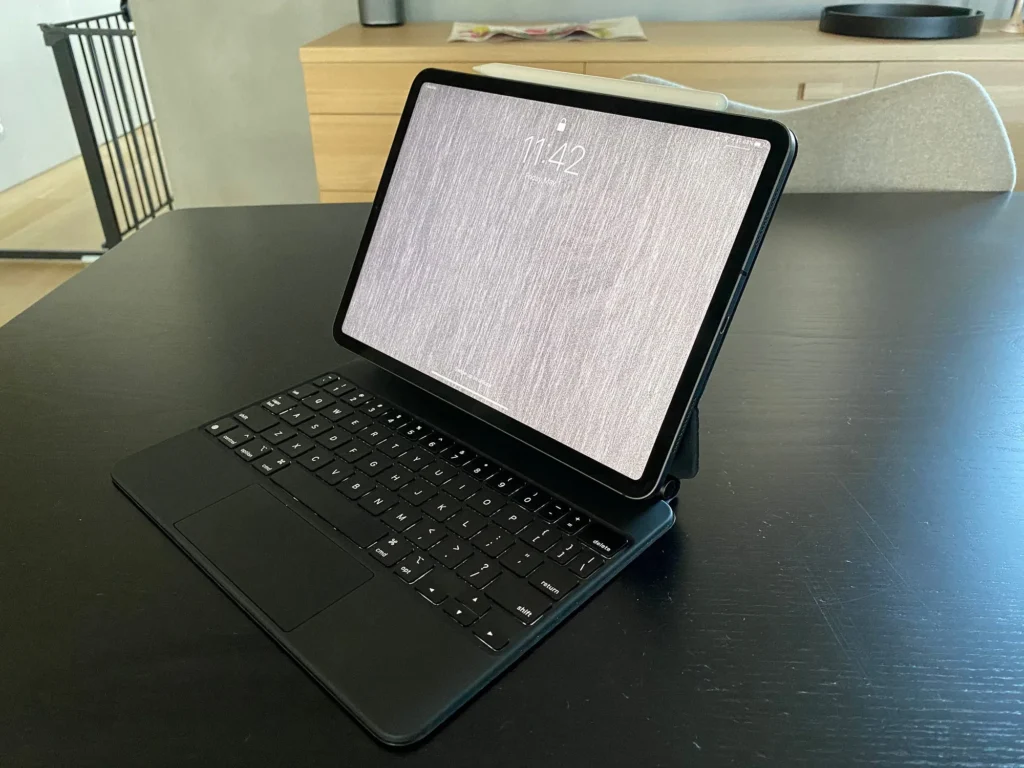
Whether you have the latest iPad Pro with its fast M4 chip, a lightweight iPad Air, or even an older model, the big bright screen and touch-friendly design make it perfect for both serious work and fun personal projects. Many people are surprised at how much their daily life improves once they start using their iPad in smarter ways.
In this article, we’ll explore five creative and practical uses that combine productivity and self-expression. Plus, you’ll find extra tips to help you make the most of your device. These ideas work great for students, professionals, freelancers, parents, and anyone who wants to stay organized while enjoying the creative side of life.
1. Digital Note-Taking That Feels Better Than Paper
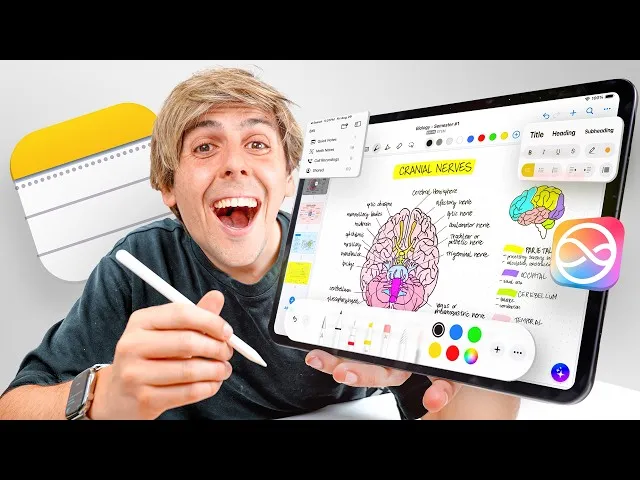
Image from :youtube.com
One of the easiest and most popular ways to boost your productivity is by turning your iPad into a smart digital notebook. Apps like GoodNotes, Notability, and the free built-in Apple Notes make handwriting feel natural when you use the Apple Pencil.
You can also checked:
13 Smart Phone Hacks Everyone Should Know
You can write meeting notes, lecture summaries, or daily to-do lists just like on real paper. The best part? Your notes become searchable. Type a keyword and find what you wrote months ago in seconds. You can also highlight important parts, add colors, insert photos, and rearrange sections easily.
Many users add a matte screen protector (often called Paperlike) so the Apple Pencil feels just like writing on paper. This setup is perfect for students taking class notes, professionals in meetings, or anyone who wants to brainstorm ideas without carrying heavy notebooks around.
Digital note-taking saves time, keeps everything in one place, and reduces paper waste. It’s a simple change that can make a big difference in how organized you feel every day.
2. Digital Art and Drawing for Relaxation and Creativity
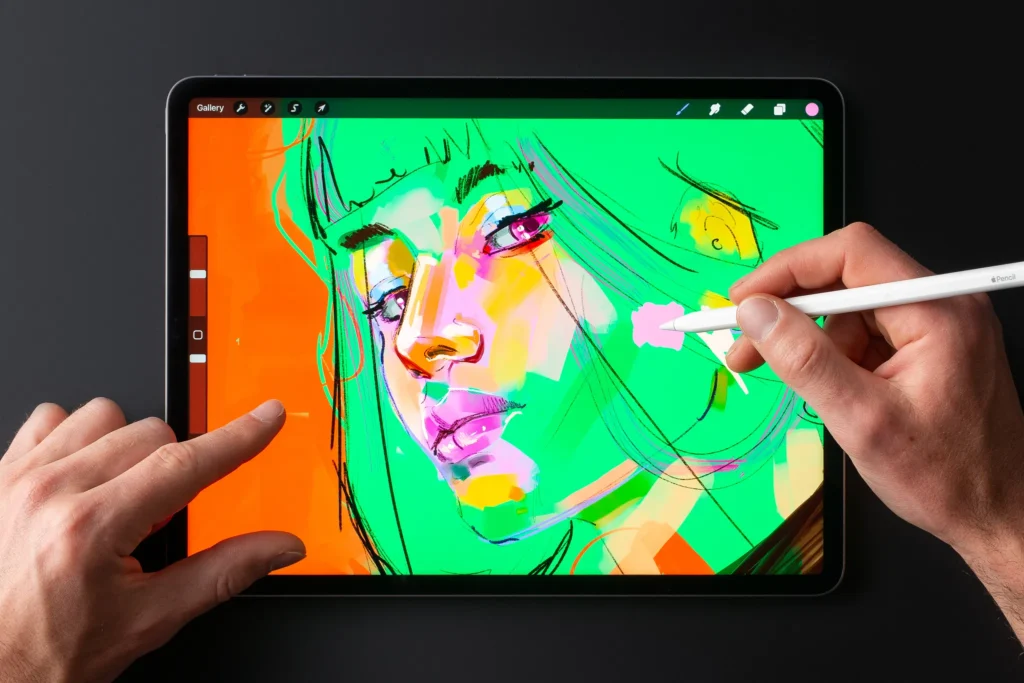
image source :developer.apple.com
If you want to express yourself creatively, your iPad can become a complete art studio that fits in your bag. The most loved app for this is Procreate. It gives you hundreds of brushes, layers, and advanced tools to draw, paint, sketch, or create detailed illustrations.
Even if you think you’re not an “artist,” you can start small. Try drawing simple doodles, making custom phone wallpapers, designing greeting cards, or coloring relaxing pages. The Apple Pencil Pro makes it even better with features like squeeze gestures and tilt support for shading.
Many people use digital drawing not just for fun but also to relax after a busy day. The process helps improve focus and gives a sense of achievement when you finish a piece. Other good apps include Concepts for endless canvas mind mapping and Adobe Fresco for beautiful watercolor effects.
You can even watch tutorial videos in Split View while practicing. In 2026, the powerful chips in newer iPads make drawing smooth and responsive, even on complex projects.
3. Digital Bullet Journaling for Better Planning and Self-Reflection
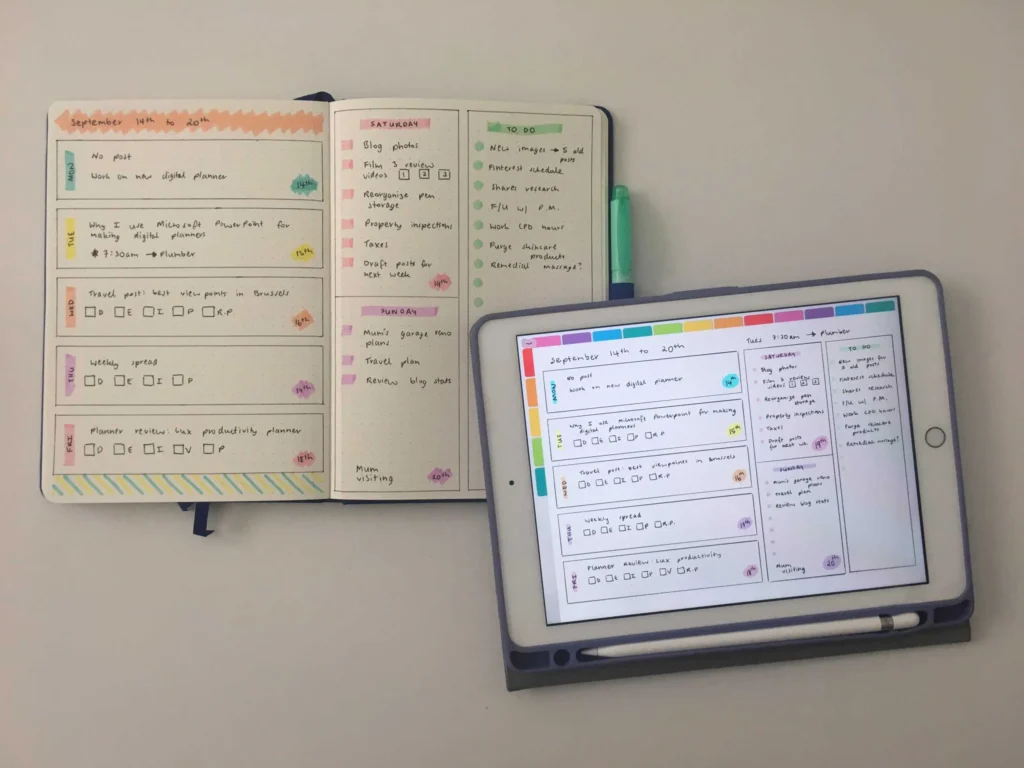
Image from :allaboutplanners.com.au
Digital bullet journaling is a wonderful way to mix organization with creativity. Instead of a traditional paper journal, you can create beautiful spreads on your iPad using apps like GoodNotes, Notability, or Zinnia Journal.
You can design weekly or monthly layouts with colorful headers, habit trackers, mood logs, and goal pages. Add stickers, photos from your day, or quick sketches to make each page personal and fun.
This method helps you stay productive by tracking tasks, appointments, and habits. At the same time, it supports self-expression because you get to decorate your pages however you like. Many users say flipping through their past digital journal entries feels rewarding and motivating.
In recent iPadOS versions, adding voice notes or quick drawings has become even easier. Start with simple templates if you’re new to it, and slowly build your own style. Digital journaling is especially helpful for people who want to reflect on their life while keeping everything neat and editable.
4. All-in-One Task Management and Life Organization
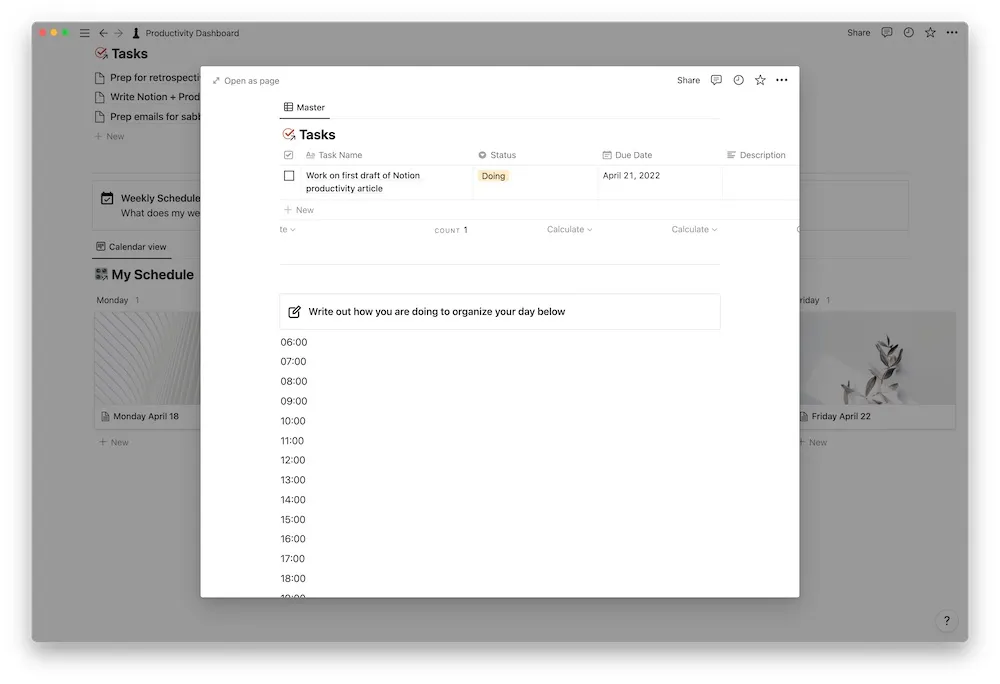
Image source :thesweetsetup.com
Your iPad can replace multiple notebooks and apps when you use powerful tools like Notion. This app lets you build custom dashboards for work projects, personal goals, reading lists, and daily routines — all in one place.
You can create visual task boards, add calendars, and use drag-and-drop features to move things around. Combine it with handwriting support so you can quickly jot ideas with the Apple Pencil and turn them into text using Scribble.
Other helpful apps include Todoist for simple task lists and Apple Reminders for quick voice entries. The large screen and multitasking features like Split View and Stage Manager let you see your calendar, notes, and tasks at the same time without switching apps constantly.
This setup is great for freelancers juggling clients, students managing assignments, or busy parents organizing family life. Adding your own colors, icons, and custom sections makes productivity feel less boring and more personal.
5. Content Creation and Design Projects
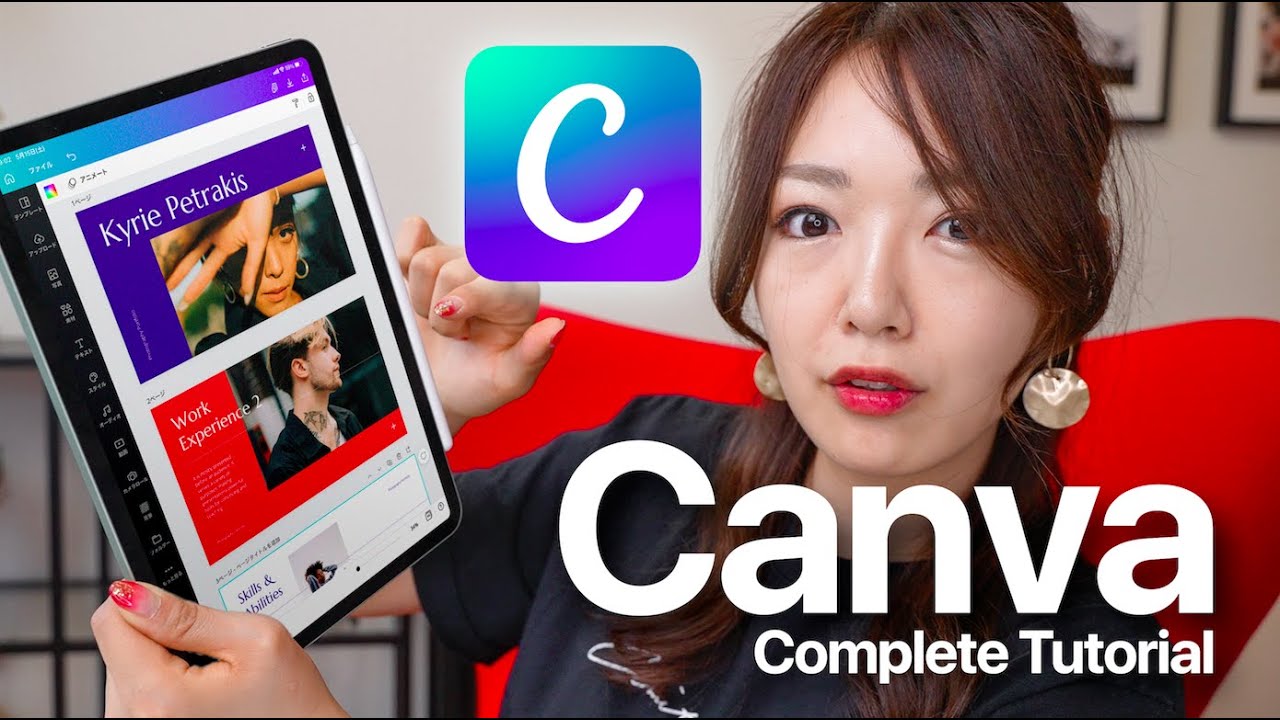
Image source :youtube.com
Many people now create professional-looking content directly on their iPad without needing a laptop. Apps like Canva make it super easy to design social media posts, presentations, flyers, or even simple e-books.
For more advanced work, try Pages or Keynote for documents and slideshows, LumaFusion for editing short videos, or Lightroom for photo editing. The touch interface and Apple Pencil make selecting, moving, and adjusting elements feel quick and natural.
Whether you run a small business, manage a blog, or just want to create beautiful family photo books, the iPad handles these tasks smoothly. Newer models with strong processors make video editing and graphic design faster than ever.
This use combines productivity (getting real work done) with self-expression (showing your unique style through designs).
Bonus Tips to Get the Most Out of Your iPad
To make your experience even better, consider these helpful suggestions:
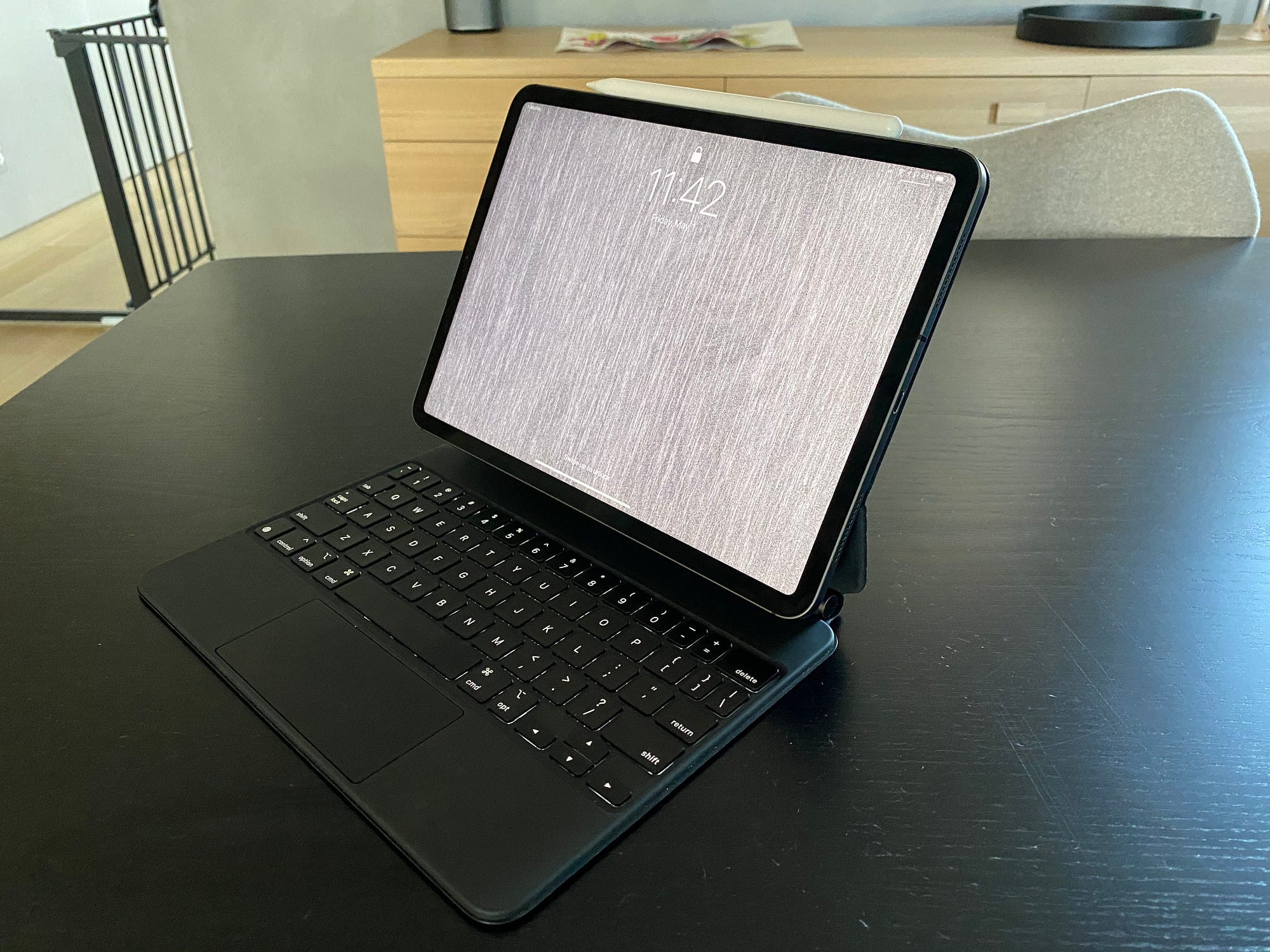
- Accessories make a difference: A good case with a keyboard and trackpad turns your iPad into a mini laptop. A Paperlike screen protector improves the writing feel with the Apple Pencil.
- Master multitasking: Use Split View to work in two apps side by side, or Slide Over for quick access to notes while browsing.
- Take advantage of iPadOS features: In 2026, Apple Intelligence can help summarize your notes, suggest ideas, or clean up writing — saving even more time.
- Start small: Don’t try everything at once. Pick one or two ideas (like digital note-taking and simple journaling) and use them daily for a week. You’ll quickly see what works best for you.
- Free vs paid options: Begin with free apps like Apple Notes or basic Canva. Upgrade only when you need extra features.
Your iPad is truly a device that grows with you. It helps you stay productive with notes, tasks, and planning while opening the door to creativity through art, journaling, and design. Many users say switching to these methods has made them feel more organized, focused, and happier.
Whether you use it for work, study, or personal growth, these creative uses can turn your tablet into a daily companion that supports both your goals and your self-expression.
Give one or two ideas a try today. Grab your Apple Pencil, open an app, and see how it changes the way you work and create. You might discover a new favorite way to use your iPad that you never thought of before.
What’s your favorite creative or productive use for your iPad? Share your tips in the comments below — I’d love to hear them!